
Blog  Vocaki
How to Add a Vocabulary Widget to Your Home Screen and Lock Screen
On this page
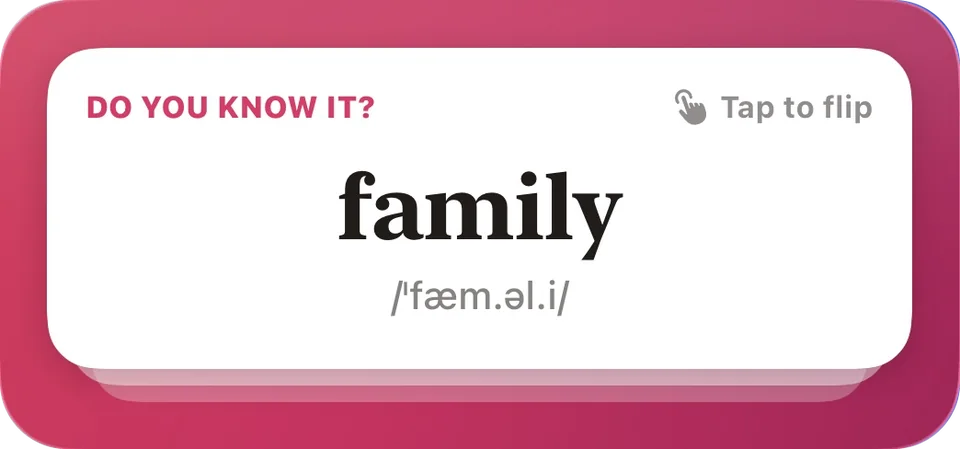
You pick up your phone dozens of times a day. Each time is a chance to see one English word for a second or two. A vocabulary widget turns those moments into practice: a small card on your home screen or lock screen that shows a word you are learning, its meaning and how to say it.
This guide shows you how to add one on iPhone and Android, which style to choose, and where to put it so it actually works.
Why a widget works better than an app alone
Opening a learning app takes a decision. A widget does not. You see the word whether you planned to study or not, and those short, repeated looks are exactly what memory needs. Research on the spacing effect has shown for more than a century that we remember far more when we meet something several times with gaps in between than when we cram it once.
A good vocabulary widget also lets you act on the word without opening anything: flip the card, mark it as known, or answer a quick question.
Add a vocabulary widget on iPhone
Home screen
- Touch and hold an empty spot on your home screen until the apps start to jiggle.
- Tap Edit in the top corner, then Add Widget. On older versions of iOS, tap the + button.
- Search for the app, for example Vocaki.
- Swipe left and right to see each style and size, then tap Add Widget.
- Drag it where you want it and tap Done.
You can add the same app several times with different styles, for example a flashcard on your first page and a word calendar on the second.
Lock screen
- Unlock your phone with Face ID or Touch ID, but stay on the lock screen.
- Touch and hold the lock screen, then tap Customize and choose Lock Screen.
- Tap the box under the clock, find the app and tap the widget you want.
- Tap Done.
The lock screen is the spot you see most often, so it is the best place for a single word card.
Add a vocabulary widget on Android
- Touch and hold an empty spot on your home screen.
- Tap Widgets.
- Scroll to the app, or search for it.
- Touch and hold the widget you want and drag it onto your home screen.
- Drag the edges to resize it if your launcher allows it.
Menus differ a little between phone brands, but every Android phone has a widget list behind a long press on the home screen.
Which widget style should you choose?
Different widgets suit different goals. In Vocaki, for example, there are five:
- Flashcard. Shows a word; tap to flip and see the meaning, then mark it as known. Best if you want quick active recall.
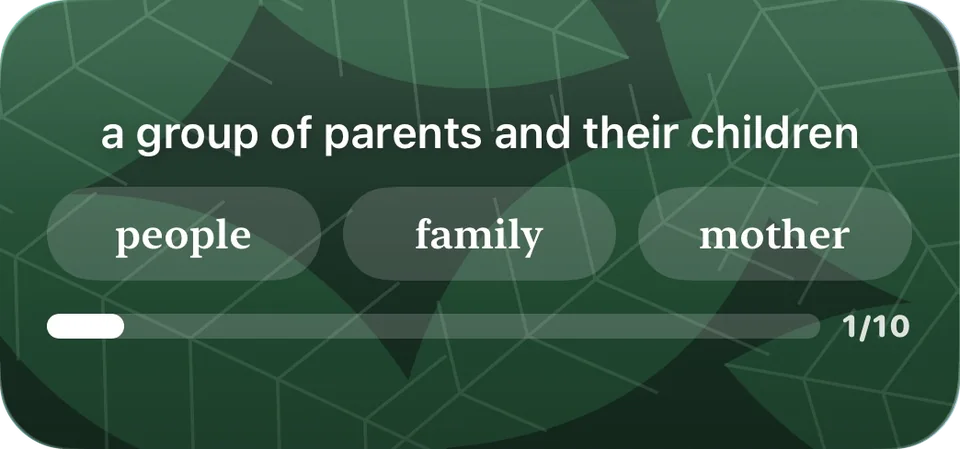
- Quick quiz. Shows a meaning and three words; tap the right one. Best if you get bored just reading cards.
- Word calendar. One word a day, like a desk calendar. Best as a calm, low-effort reminder.
- Streak buddy. A small character that smiles when you have studied today and looks worried when you have not. Best for keeping the habit.
- Lock screen card. A word you can listen to and check off every time you pick up the phone.
If you only add one, choose the flashcard or the quiz. Seeing a word is good, but trying to remember it before you see the answer is what makes it stick.
Where to put it
- First page, top row. Widgets on a page you rarely visit are easy to ignore.
- Next to apps you open often. Put it beside your messages or browser so your eyes pass over it.
- Pair it with a habit. Answer one widget question every time you unlock your phone to check messages.
Make the widget part of a system
A widget keeps words in front of you, but on its own it is not a study plan. It works best when the words come from your own lessons and are reviewed on a schedule, so the widget shows words you are about to forget rather than random ones. That is how Vocaki's widgets work: they pull from the words you are learning and from what is due for review.
Want to know why timing matters so much? Read our guide to spaced repetition, or see a simple 10-minute daily routine for building your vocabulary.
More articles
 Vocaki
Spaced Repetition: How to Remember English Words for Good
Why you forget new English words within days, and how spaced repetition and active recall fix it. A simple review schedule you can start today.
 Vocaki
How to Build Your English Vocabulary in 10 Minutes a Day
A practical vocabulary builder routine. Which English words to learn first, how many per day, and a 10-minute plan that keeps them in your memory.